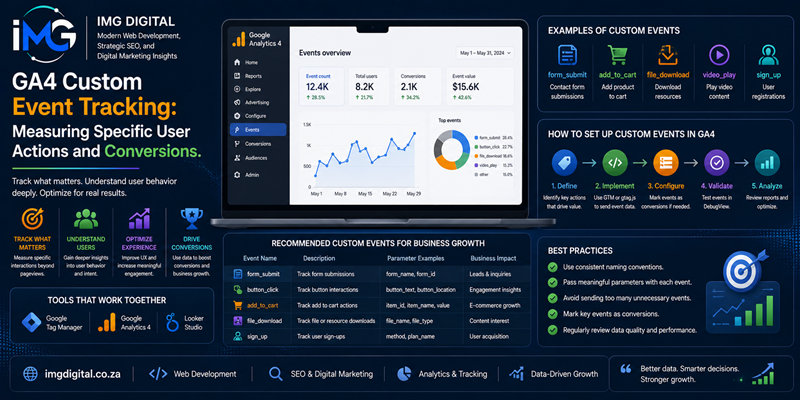
GA4 Custom Event Tracking: Measuring Specific User Actions and Conversions – Understanding user behavior across digital platforms requires precise data collection. In the past, legacy analytics tools like Universal Analytics relied primarily on session-based metrics and pageview tracking. However, modern web platforms demand a deeper understanding of how visitors interact with specific site components.
GA4 Custom Event Tracking: Measuring Specific User Actions and Conversions
Specifically, Google Analytics 4 (GA4) uses a flexible, event-based data architecture where every interaction is captured as an event. While GA4 automatically collects standard metrics out of the box, measuring unique business objectives requires custom event implementation. Therefore, mastering GA4 custom event tracking is essential for capturing high-value user actions, defining conversion goals, and driving data-informed decisions.
Understanding the GA4 Event Architecture
To build a robust analytics setup, developers must understand the four distinct event categories in GA4:
-
Automatically Collected Events: Events tracked by default, such as
first_visitandsession_start. -
Enhanced Measurement Events: Features enabled in GA4 to capture file downloads, outbound link clicks, and site search queries automatically.
-
Recommended Events: Pre-defined event names suggested by Google for common verticals like e-commerce (
purchase) or lead generation (generate_lead). -
Custom Events: Tailored events created by developers to track unique interactions falling outside standard frameworks.
Because custom events allow organizations to track specialized user journeys, they provide the foundation for advanced analytics. Furthermore, pairing custom events with custom parameters captures critical context—such as button categories or user types—making raw data far more actionable.
Implementing Custom Events Using Google Tag Manager
Implementing custom events efficiently requires combining GA4 with Google Tag Manager (GTM). By utilizing GTM, technical teams deploy tracking scripts without altering core codebase logic. The Power of Content Refactoring: How Updating Old Articles Boosts Organic Traffic
Step 1: Define Standardized Naming Conventions
Before configuring tags, establishing consistent naming rules is critical. Specifically, GA4 enforces case-sensitive naming and recommends lower_snake_case for all custom events and parameters. For example, use submit_lead_form instead of Submit-Lead-Form. If naming conventions remain inconsistent, reports become fragmented across separate event rows, corrupting data integrity.
Step 2: Push Custom Data via the Data Layer
When tracking complex user actions—such as dynamic form submissions—developers should push events directly to the GTM dataLayer.
JavaScript
/* Example Data Layer Push */
dataLayer.push({
  'event': 'custom_button_click',
  'button_name': 'download_whitepaper',
  'user_plan': 'enterprise'
});
As shown in this code snippet, pushing structured payloads ensures custom context transfers cleanly to analytics engines without depending on brittle DOM selectors.
Step 3: Configure Triggers and GA4 Tags in GTM
Once the data layer fires, set up matching triggers and tags inside GTM:
-
Create a Custom Event Trigger: Match the exact event name defined in your script (e.g.,
custom_button_click). -
Build the GA4 Event Tag: Input your GA4 Measurement ID, target event name, and parameters like
button_name. -
Verify in Preview Mode: Use GTM Preview Mode to confirm tags fire correctly upon user interaction.
Registering Custom Parameters and Conversions in GA4
Capturing raw event data in GA4 represents only half of the implementation process. To utilize parameter data inside GA4 reporting interfaces, custom attributes must be registered explicitly in the GA4 Admin UI.
Creating Custom Dimensions and Metrics
When custom parameters arrive in GA4, they remain inaccessible within custom reports until configured as Custom Dimensions or Custom Metrics. Therefore, navigate to Admin > Custom Definitions and register each incoming parameter name. As a result, attributes like button_name become available across Exploration reports and funnel visualizations.
Marking Events as Key Events (Conversions)
In addition, business-critical events must be marked as conversions—now designated as Key Events in GA4. By toggling the conversion switch next to high-value events like generate_lead, GA4 calculates conversion rates automatically. Consequently, marketing teams attribute conversions accurately across organic search, paid campaigns, and social channels.
Quality Assurance and Debugging Practices
Deploying unvalidated tracking setups risks corrupting analytics databases with bad data. Therefore, auditing teams must execute thorough quality assurance before deploying tags to production.
-
Utilize GA4 DebugView: By enabling GTM Preview Mode, developers inspect real-time events inside GA4 Admin > DebugView. Consequently, parameters, event timing, and data types can be validated instantly.
-
Avoid Reserved Event Names: Specifically, never use system-reserved prefixes like
ga_or names likepage_view. If reserved names are overwritten, standard analytics tracking may break. -
Monitor Parameter Limits: GA4 imposes strict limits on parameter counts per event (up to 25 custom parameters). Therefore, maintain clean schemas to prevent parameter truncation.
Summary
In conclusion, GA4 custom event tracking provides the structural foundation for measuring meaningful user engagement and conversion goals. By leveraging Google Tag Manager, establishing strict snake_case naming conventions, pushing data layer payloads, and registering custom dimensions, technical teams construct highly accurate analytics environments. Furthermore, rigorous QA testing with DebugView prevents data corruption and ensures reliable reporting. Ultimately, mastering custom event tracking empowers digital businesses to transform raw user interactions into actionable insights, optimizing digital platforms for sustained growth.